
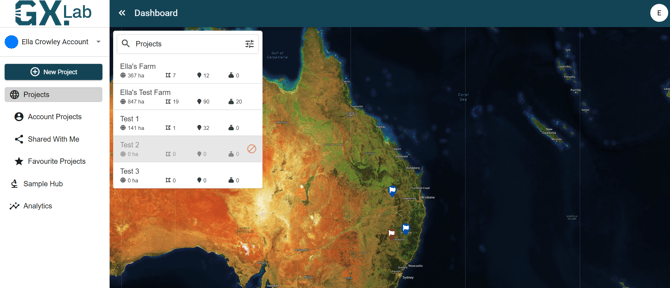
After logging into GXLab, select the letter icon (in this case an E) at the top right-hand hand corner of the screen.
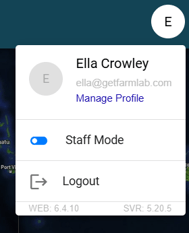
This will open a menu, select the Manage Profile link under your account name and email. This will take you to your profile and account settings.
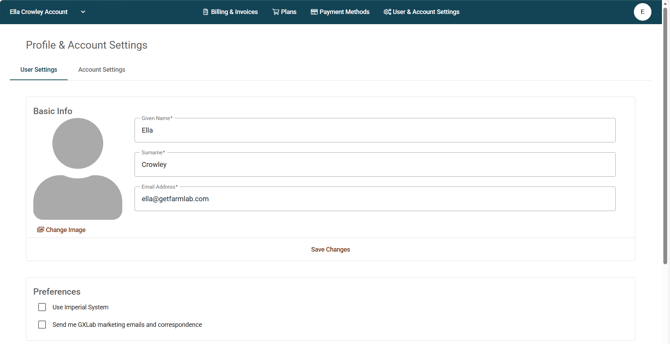
This will give a range of different options on how you can change both your profile and account settings.
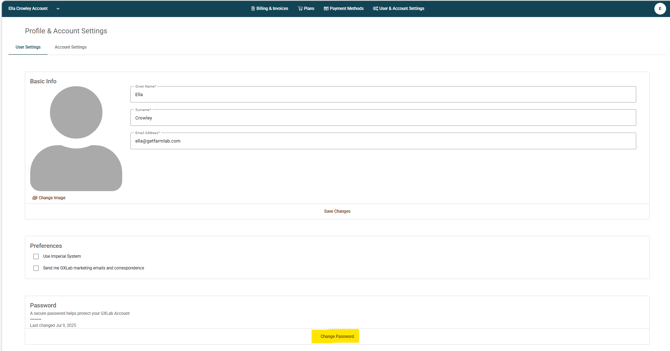
About 3/4 down the page is the Change Password button, this will then open a new menu allowing you to change your password.
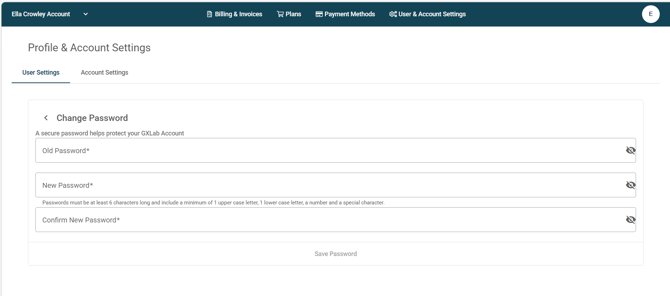
Now enter the old password, followed by a new password. Passwords must be at least 6 characters long and include a minimum of 1 upper case letter, 1 lower case letter, a number and a special character. Ensure that you press the Save Password button when complete to confirm this process.
You have now successfully changed your password.