Folder Creation
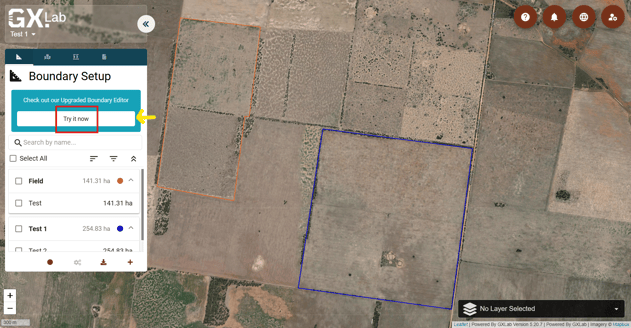
1. Open your project in the Upgraded Boundary Editor platform (GMS) by clicking the “Try it now” button under the Boundary Setup tab on the left.
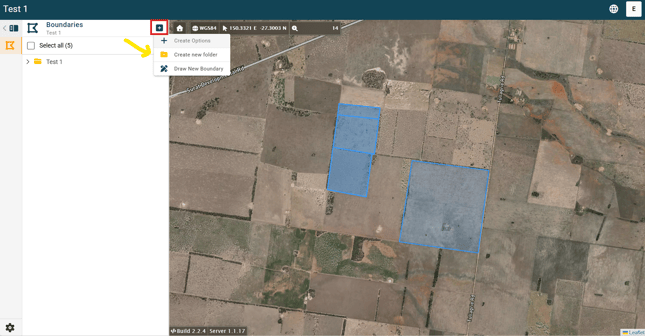
2. Click the “+” icon on the left-hand bar, then select “Create new folder”.
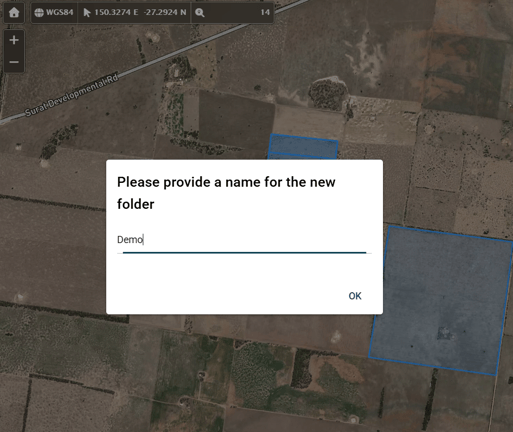
3. Enter a name for the folder and click “OK”.
The new folder will be created and can be used to organise your boundaries.
Adding existing boundaries to the folder
1. Select the boundary you want to add to a folder. Then click the three dots in the top corner of the right-hand toolbar and choose “Change Folder” from the dropdown menu.
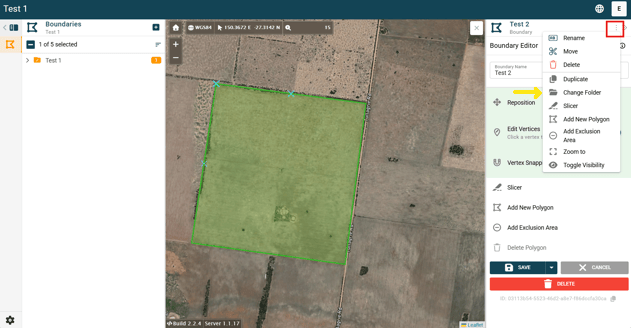
2. Search for your folder, or click the arrow to view all available folders.
.png?width=647&height=337&name=Screenshot%20(3).png)
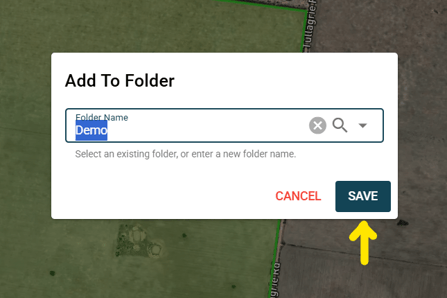
3. Click “Save” to add the boundary to the selected folder.