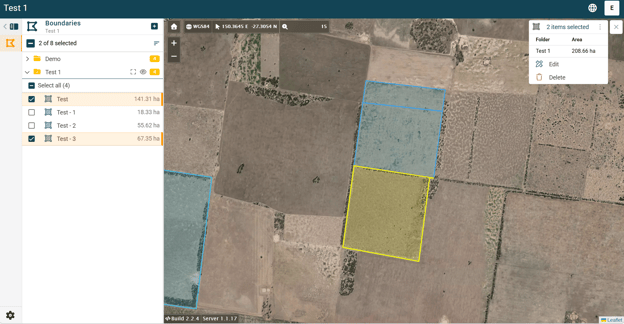
The “Multi-Part to Single-Part” tool is used to convert segments created with the “Slicer” tool into individual boundaries within GXLab. This allows each segment to be managed and treated separately within your project. Follow the steps below and refer to the images for an example:
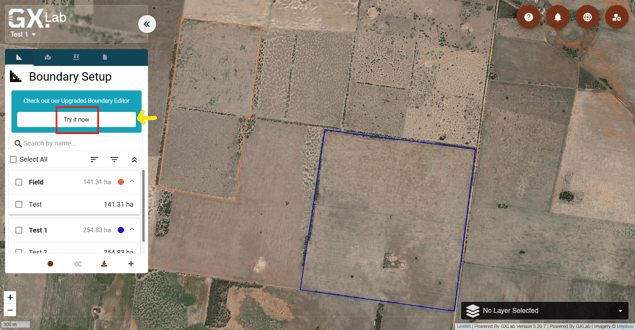
1. Open your project in the Upgraded Boundary Editor platform (GMS) by clicking the “Try it now” button under the Boundary Setup tab on the left.
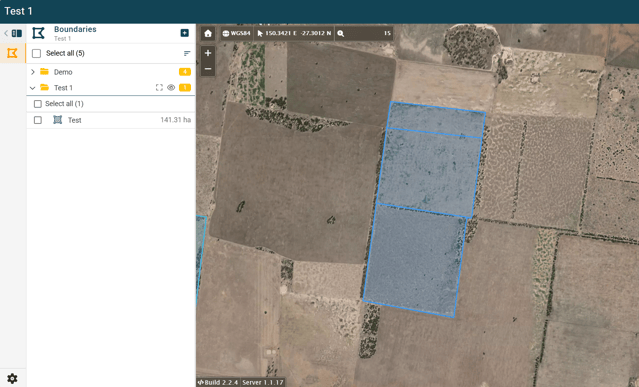
2. Navigate to a boundary that contains segments created using the “Slicer” tool (see separate 'Boundary Slicer Tool' article for instructions).
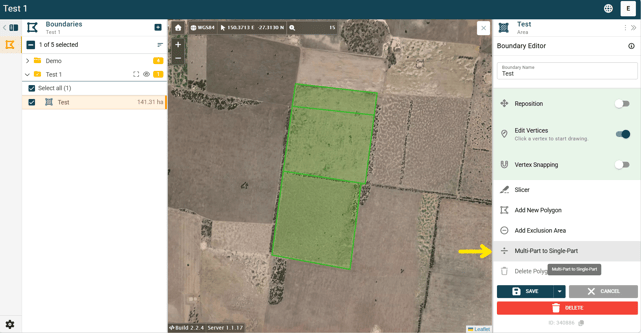
3. Click on the boundary to select it. Then, in the panel on the right-hand side, locate the “Multi-Part to Single-Part” function at the bottom.
Note: This option will only appear for boundaries that have been previously sliced.
4. Select the “Multi-Part to Single-Part” function and enter a name for the new boundaries.
- The segments will automatically be assigned numbered suffixes e.g. 1, 2, 3... (can be edited/removed after boundary creation).
- Tick “Keep original boundary” if you want to retain the original boundary alongside the new segmented boundaries.
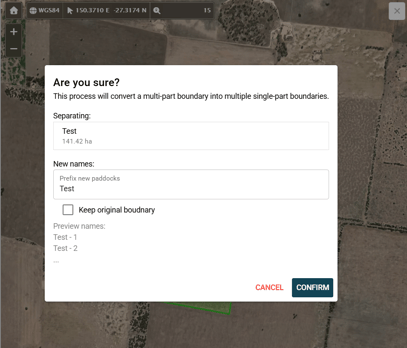
5. Click “Confirm” to apply the changes. The new boundaries can now be individually selected and managed within GXLab.