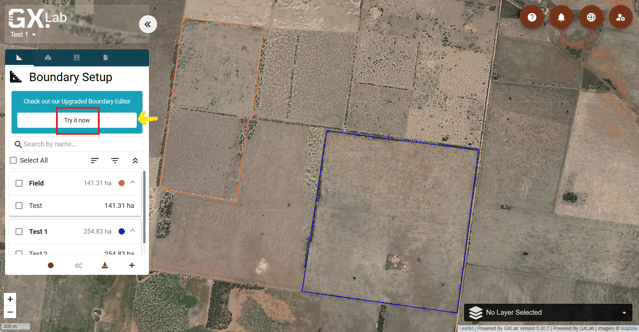
1. Open your project in the Upgraded Boundary Editor platform (GMS) by clicking the “Try it now” button under the Boundary Setup tab on the left.
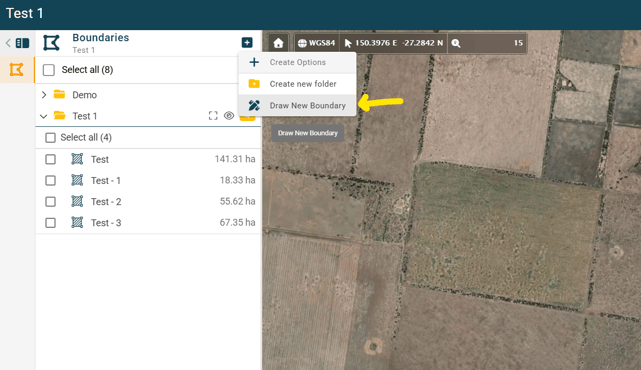
2. Click the “+” button in the top corner of the left-hand toolbar, then select “Draw New Boundary” from the dropdown menu.
3. Click on the map to add vertices and draw your boundary polygon. You can adjust vertex positions by clicking and dragging them.
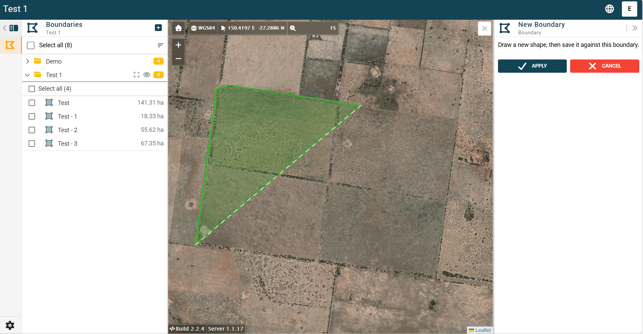
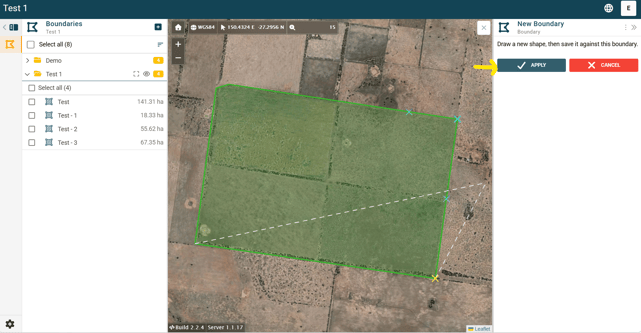
4. When you have finished drawing, click “Apply” to save the boundary shape.
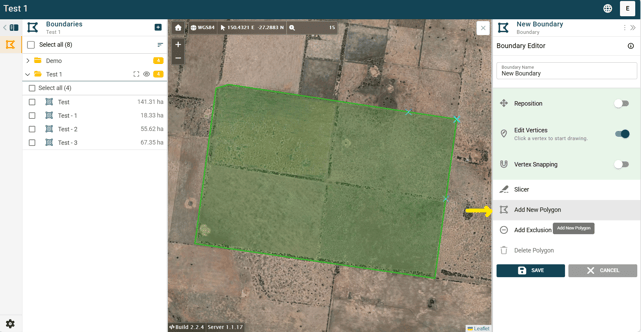
(Optional) Add additional polygons under the same boundary by selecting the “Add New Polygon" tool in the right-hand toolbar and drawing another area.
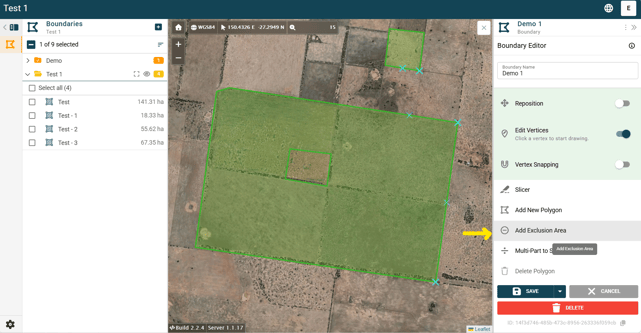
(Optional) Add an exclusion area (e.g. house, water tank) by selecting the “Add Exclusion Area” tool in the right-hand toolbar and drawing a polygon around the area you want to exclude from the boundary.
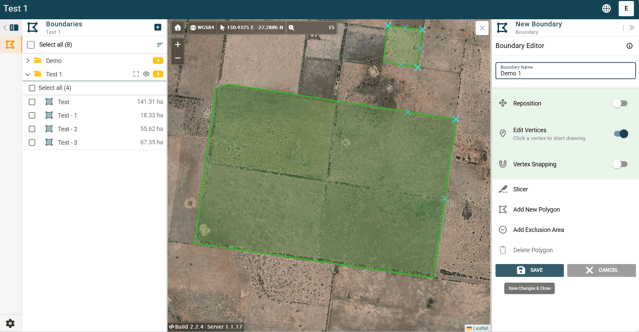
5. Enter a name for your boundary, then click “Save” to apply your changes.
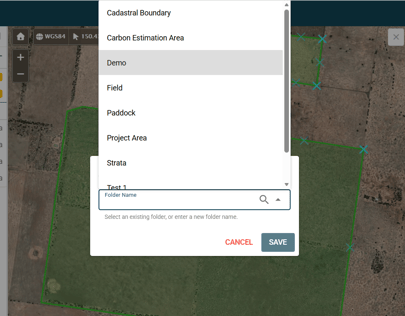
6. Assign the boundary to a folder by selecting an existing GXLab folder from the dropdown (e.g. Paddock, Field, Strata, Management Zone), or create your own (see separate Folder creation and use article for instructions). Click “Save” to confirm.