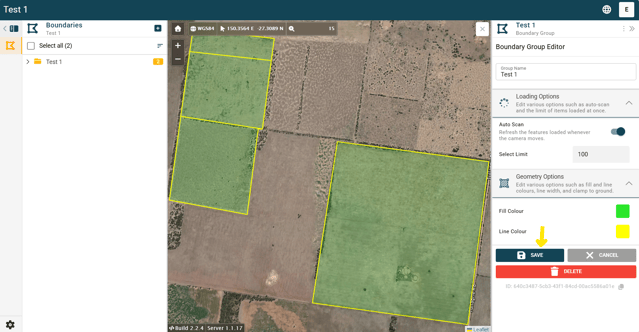
This tool allows you to customise the colours of all boundaries within a selected folder group. Follow the steps below and refer to the images for an example:
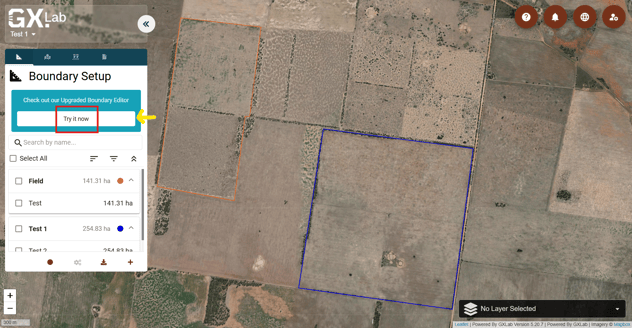
1. Open your project in the Upgraded Boundary Editor platform (GMS) by clicking the “Try it now” button under the Boundary Setup tab on the left.
2. Select the folder that contains the boundaries whose colours you want to change. Then click the “Layer Display Options” button (settings icon) in the box that appears in the top-right corner.
.png?width=641&height=332&name=Screenshot%20(2).png)
3. In the panel on the right side of the screen, under “Geometry Options”, you will see:
- “Fill Colour” – changes the colour inside the boundary area.
- “Line Colour” – changes the boundary outline colour.
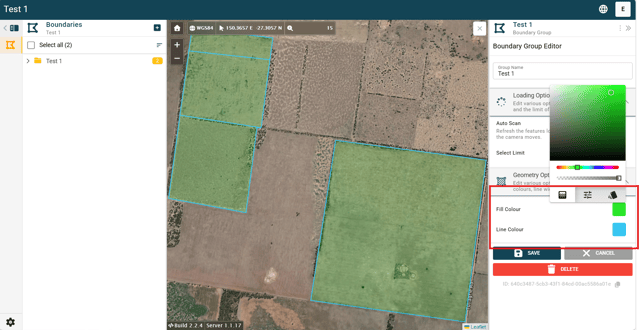
Select either option to choose a colour using the gradient or colour palette. Use the slider beneath the colour gradient to adjust transparency.
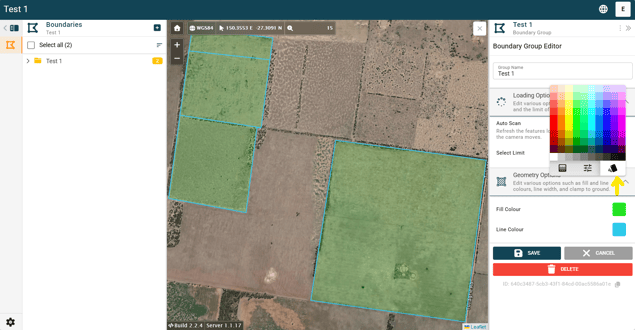
4. When you’re finished:
- Click “Save” to apply the changes, or
- Click “Cancel” to discard them.